By Clipback
Your cut is ready. The client needs to watch it and tell you what to change. Before they can do that, an account invitation, an unfamiliar workspace, or an unclear feedback request can turn a simple review into another support task.
To send videos to clients for feedback without requiring an account, upload the cut to a browser-based review page and share its review link. Tell the client which version to watch, what decisions you need, and when their notes are due. They should be able to identify themselves and comment without creating a login.
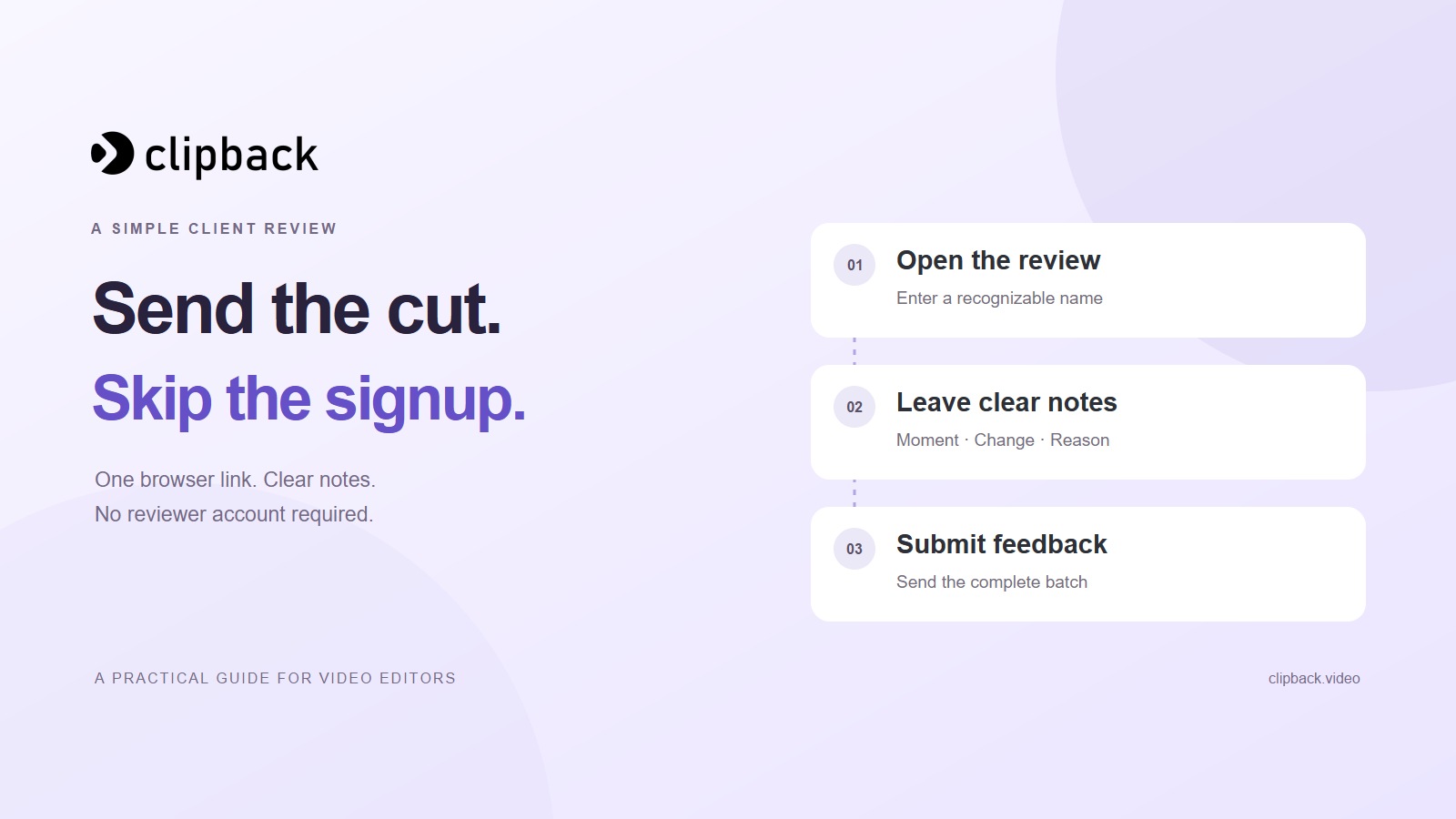
This guide follows the client experience in Clipback, from opening the link to submitting timestamped notes. It also includes a review-request email you can adapt for your next project. The editor needs a Clipback account; the invited reviewer does not.
Download the client review email templates → Includes a first invitation and a reminder. No signup required.
1. Prepare a cut that is ready for the decisions you need
Give the video a recognizable title and check its version number before sharing. “City escape — version 1” tells the reviewer more than “final-new-2.mp4.” Open the uploaded video and check playback, audio, and the beginning and end of the file.
Then define the purpose of this round. Are you asking about structure and shot selection, or checking the finished graphics and spelling? Mention unfinished elements so a client does not spend their review describing work you already plan to do.
For a city travel teaser, the request could be: “Please review version 1 for skyline framing, opening pace, and the end of the aerial move. This round uses the agreed footage; the final delivery export comes after approval.” A focused request gives the client a useful starting point while leaving room to flag other concerns.
2. Share the review link with the people who need to respond
In Clipback, open the uploaded video in your project and use its review-link controls. Copy the review URL and send it to the intended reviewers. Use that client-facing URL rather than the address of your editor dashboard.
Open the link in a separate browser or private window before sending it. Confirm that it opens the intended video, that any password works, and that the link will remain active through the review deadline. This quick check also lets you see the instructions from the client's perspective.
A link that opens without an account still needs sensible handling. Share it with the intended reviewers, use a link password when appropriate, and keep the review deadline within any expiry you set. A password protects access to a link; it does not require the client to create an account.
3. Explain the name prompt
In our Clipback demonstration, the first screen asks for the reviewer's name so the editor can identify their notes. There is no account-registration step in this flow.
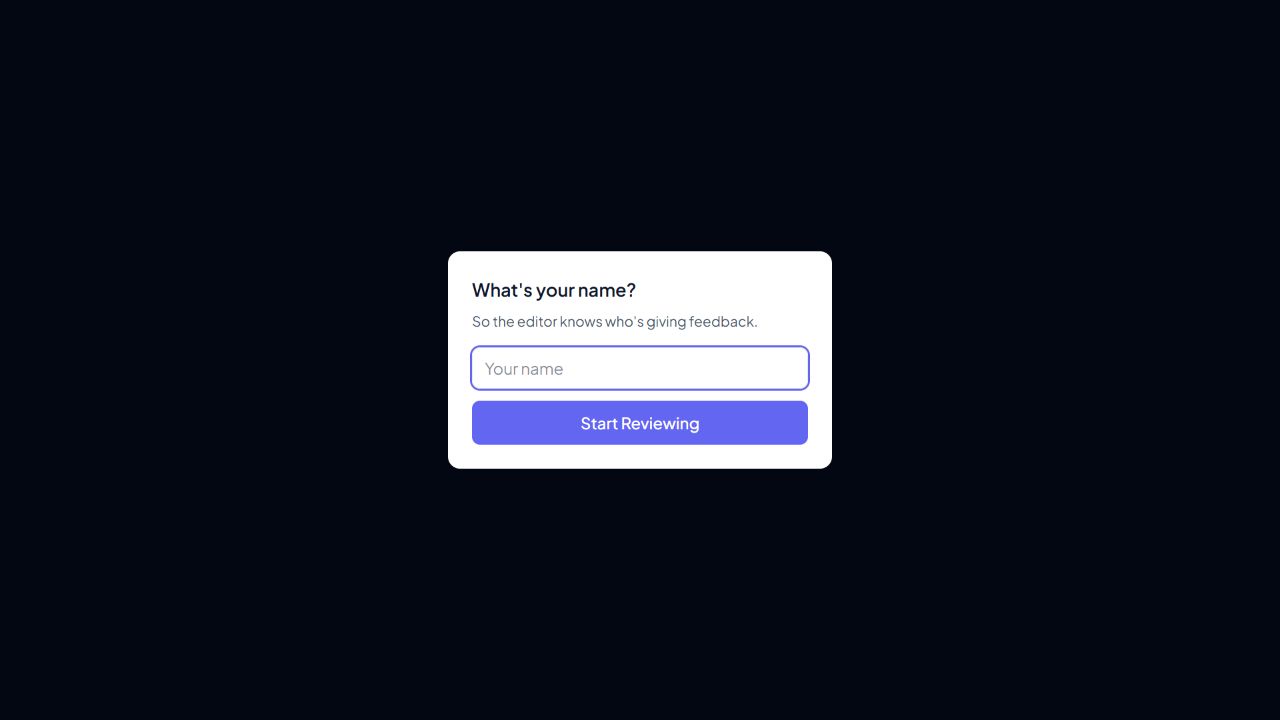
Tell clients to use a name the project team will recognize. The field labels their contribution; it does not verify their identity or authority to approve the work. Agree who owns the final decision separately.
4. Show how to leave a useful timestamped note
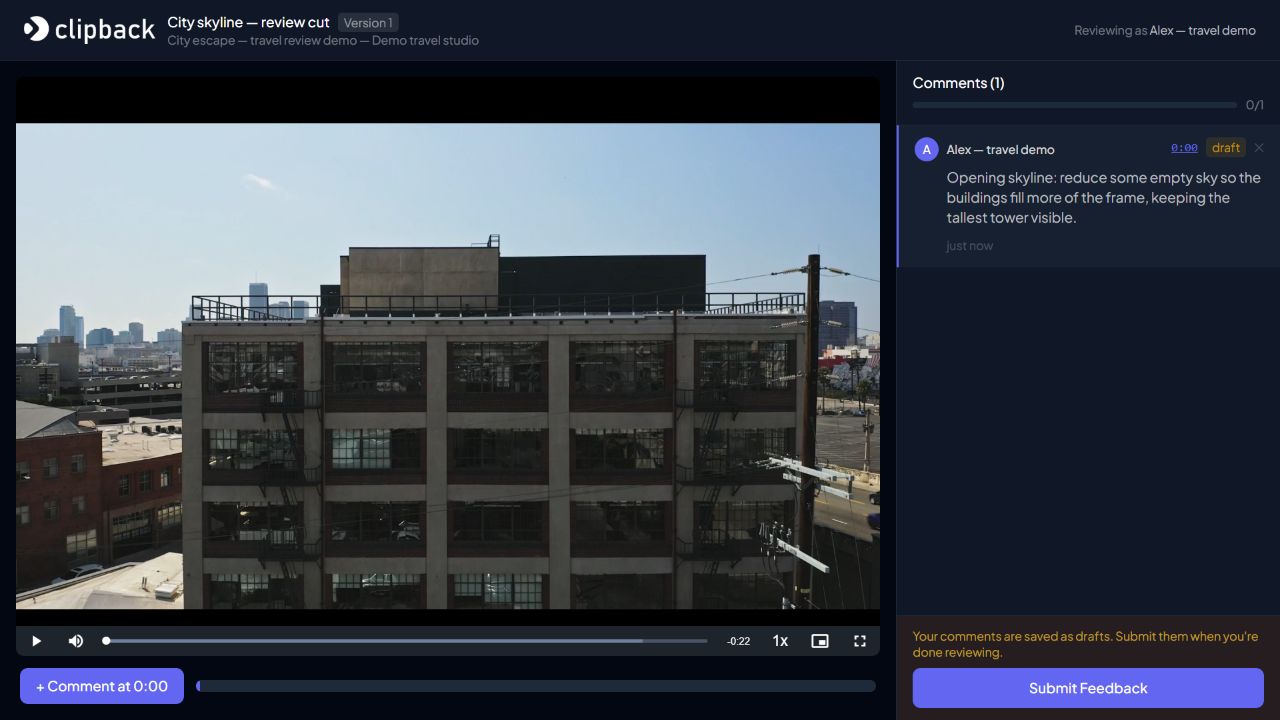
Ask the reviewer to watch the whole video once, then return to the moments they want to discuss. In Clipback, they can pause at a moment and choose + Comment at [time], write the note, and choose Post Comment.
Useful feedback describes the requested change and its purpose. For example: “Opening skyline: reduce some empty sky so the buildings fill more of the frame, keeping the tallest tower visible.” That is easier to act on than “Can the opening be stronger?”
If a note applies to the entire video, label it “Overall” in the comment text. For example, “Overall: please use the supplied track throughout.” A timestamp attached to that note should not be mistaken for a request to change only one moment.
For a more detailed note format, send the client our free client video feedback template. It includes a location, priority, requested change, and reason, plus a place to record what should stay.
5. Ask the client to submit the complete batch
In this workflow, posting an individual comment saves it as a draft. Submit Feedback sends the reviewer's notes to the editor. Make that last step explicit in your invitation; otherwise a client may think that typing a note has finished the review.
Ask each expected reviewer to confirm that they have watched the whole cut and submitted their notes by the agreed deadline. One person's submission does not mean every stakeholder has finished. Have the client contact collect the remaining decisions before you begin revising.
Keep feedback and approval separate. If the client has changes, they should send those notes. If the cut is ready for final sign-off, use a specific approval request naming the version and the agreed approver. See how to get final approval on a client video for that stage.
A client review email you can copy
Replace the brackets and include the actual deadline. Keep the instructions short enough to read before opening the video.
Subject: [Project] — version [number] ready for feedback

Hi [name],

Your review link is ready: [review URL]
No reviewer account is needed. Enter your name, then Start Reviewing.
[If applicable: the link password is shared via our agreed channel.]

Please review [video title / version] for [decisions needed].
[Unfinished elements or items outside this round, if relevant.]

1. Watch the full cut, then pause at each moment you want to discuss.
2. Choose + Comment at the current time and Post Comment.
3. Say what to change and why. Mention anything you want to keep.
4. When your notes are complete, choose Submit Feedback.

Please submit by [date, time, time zone].
[Client contact] will confirm that all expected feedback is in.
[Decision-maker] will resolve any conflicting requests.

Thanks,
[Your name]
If the review gets stuck
The client says the link does not open
Check that you sent the complete review URL, that it is still active, and that the client has the correct password if one is enabled. Open the same link yourself in a separate browser. Ask what screen or message the client sees before issuing another link.
The client says they already left notes
Ask whether they chose Submit Feedback after posting their comments. In the example above, the draft badge and the button are the cues that the batch still needs to be sent.
The notes arrive in email anyway
Keep the useful feedback and confirm where the agreed revision list will live. Point the reviewer back to the link for their next note. If a round has already spread across several apps, use the steps in organizing client feedback across email and chat.
Give your next client a direct route to the cut. Create a free Clipback project, upload your video, and send the review link with the invitation above. The revision-round guide explains how to turn a complete batch into the next version.
The travel project and reviewer are fictional. Screenshots were freshly captured from the actual Clipback app on 23 October 2026 using a Studio demo account. Demonstration footage: Aerial Shot of City Buildings by RDNE Stock project / Pexels, used under the Pexels License. No creator endorsement is implied.