By Clipback
“Looks good” can mean several things. The client may like the new opening but still need their manager to check the captions. They may be approving the creative direction while expecting another export. Or they may be telling you the exact video is ready to deliver.
To get final approval on a client video, ask the agreed approver to review a clearly identified version, confirm that the requested changes are complete, and give an explicit decision on that version. Record the approver, date, version, and any remaining conditions together before handing over the delivery files.
This guide includes an approval-request message, a sign-off record, and a real Clipback demo showing the difference between submitted feedback and an approved video.
Download the video approval template → Includes the request, confirmation wording, and a delivery checklist. No signup required.
Agree who can give the final decision
Identify the approver before the final review. The person coordinating feedback may need a brand lead, producer, or business owner to decide. Ask your client contact to name the person who will return the final instruction after the relevant stakeholders have reviewed.
For a ceramics workshop film, the agreement could be: “Alex and Sam can leave notes. Morgan will resolve their decisions and confirm when the selected cut is approved for delivery.” That gives everyone a useful role without asking the editor to guess which opinion carries authority.
Tell the approver what the decision covers. An approval of a landscape social cut should not silently become approval of a later vertical crop, translated captions, or a different music edit. List the deliverables and review them at the appropriate stage.
Identify the video beyond its review URL
Include the project, video title, version number, and review link in the request. A filename, duration, or export date can add a useful cross-check when a client has downloaded several cuts.
Keep those details with the approval record. A review link can display a newer upload later, so the URL alone is not a complete description of what the client approved. Avoid renaming several different files “final.mp4” and expecting the conversation to distinguish them.
In our example, the review item is Pottery process — approval cut, version 1, a pottery process clip lasting just over a minute. Version 1 is sufficient for this demonstration; the example does not claim that an earlier round of edits was completed.
Check the cut before asking for sign-off
Run through the agreed revision list and the delivery brief. Give every requested item an outcome: implemented, preserved, withdrawn by agreement, or still awaiting a decision. Resolve the last category before describing the cut as ready for unconditional approval.
- Content: agreed structure, shot choices, wording, names, and calls to action.
- Picture and sound: graphics, colour, music, dialogue, and any unfinished placeholders.
- Delivery: agreed aspect ratios, captions, formats, and the intended export.
- Open items: missing assets, contradictory notes, or changes the client has not decided.
The exact checks depend on the brief. For example, a caption-free internal review cut is not the finished captioned deliverable simply because the edit has been approved. State what remains, and ask for the decision you actually need.
If the remaining issue is a disagreement between stakeholders, use the process in handling conflicting video feedback before sending the final approval request.
Make the approval request specific
Summarize the changes, identify anything that remains open, and ask for a direct decision. Replace the brackets in this message:
Subject: Final approval requested — [video title], version [number]

Hi [approver],

Please review [video title / version / filename]: [review link].
This approval covers: [cut, format, language, or deliverable].

The agreed changes are complete:
- [change or agreed decision]
- [change or agreed decision]

Outstanding items: [None / list the items requiring a decision].

Please watch this version through, check the agreed changes, and
confirm one of the following by [date, time, time zone]:

- Approved for delivery as identified above.
- Changes requested: [one complete list with timestamps].

Please confirm that the required stakeholders have reviewed it.
If you approve in Clipback, use Approve on the identified video.

Thanks,
[Your name]
If the client replies “approved, except for the music,” the music decision is still open. Record that condition and agree the remaining step. A deadline helps you schedule delivery; silence does not supply the missing approval.
Keep feedback, editing completion, and approval separate
| What happened | What it tells you | What still needs checking |
|---|---|---|
| A reviewer submitted feedback | Their batch of notes has been sent. | Whether other reviewers are finished and the notes have been resolved. |
| The revision checklist is complete | The editor has closed the tracked items. | Whether the client has checked the resulting version and approved it. |
| The agreed approver approves the identified cut | A final decision has been given for that review item. | Whether any conditions remain and every delivery item is covered. |
This distinction matters in Clipback too. Submit Feedback sends comments; Approve is a separate action. A reviewer with changes should complete and submit their notes rather than approve the cut while expecting those changes to happen later.
What an approved video looks like in Clipback
For the Studio demo below, Morgan is the fictional final approver. The review page displays the video title and version, then shows Approved by Morgan — ceramics demo after the approval has been recorded.
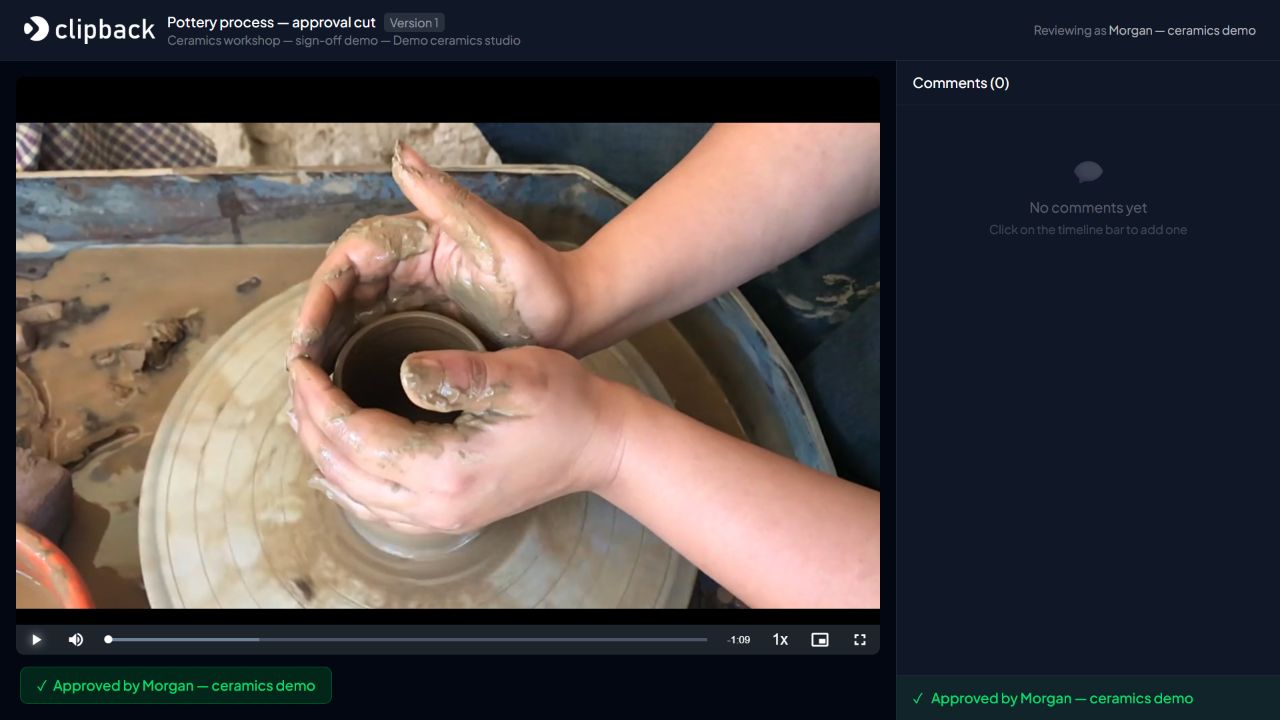
Ask your agreed approver to enter their own recognizable name. The reviewer name is self-entered, so agree their authority through your client relationship rather than assuming the name field verifies it.
When you upload a new video version in Clipback, the earlier approval is cleared so the new cut can be reviewed. Preserve the version and decision in your own handoff record as well. The plans page lists current workflow features and limits; the screenshot uses a Studio account.
Save a small sign-off record
Keep this record with the project files or delivery notes. If approval arrives by email, keep the message alongside it rather than replacing the client's wording with your interpretation.
VIDEO SIGN-OFF RECORD

Project:
Video title / version / filename:
Review link:
Deliverables covered:
Approver name and agreed role:
Approval date, time, and time zone:
Approval message or recorded decision:
Remaining conditions: None / [details]
Delivery files and delivery date:
For a confirmation sent by email, give the approver a precise sentence to adapt: “I approve [video title], version [number], [filename], for delivery as [deliverable]. Outstanding conditions: none.” They should only use that wording if it matches their decision.
Close the handoff, then handle later changes explicitly
After approval, export the agreed deliverables and check them before sending. Include the filenames and the approved version in your delivery message. If a different crop, caption track, or other adaptation still needs review, name that next step rather than treating the whole project as finished.
When a request arrives after sign-off, identify the requested change and agree its effect on scope and schedule before editing. A new upload is a new cut to check. Keeping the earlier approval record makes that conversation clearer without preventing the client from asking for further work.
Make the next approval request easy to answer. Use the approval template, then set up a Clipback review for the identified cut. If your client is new to review links, send them the steps in reviewing a video without creating an account.
The ceramics project and approver are fictional. Screenshots were freshly captured from the actual Clipback app on 23 October 2026 using a Studio demo account. Demonstration footage: The Art Of Pottery by Kavita Arora / Pexels, used under the Pexels License. No creator endorsement is implied.