By Clipback
“The middle feels off” is a real reaction. It is also a difficult editing instruction. Which moment needs attention? Is the problem the pacing, the shot, or the music? And does it need fixing before delivery, or is it a preference to explore?
A useful client video feedback template answers those questions while the reviewer is still watching. Give every note a location, a clear request, and a priority. Add a short reason when the intention might otherwise be unclear.
Below is a free template you can copy into an email or shared document, followed by a filled-in example and a message to send with your next cut. You can also use the same format in timestamped Clipback comments.
Download the plain-text feedback template → No signup required.
The client video feedback template
Start with the review details, then repeat the note section for each piece of feedback. Keep general thoughts about the whole video separate from comments about a particular moment.
VIDEO REVIEW

Project:
Video / version being reviewed:
Review link:
Reviewer:
Person responsible for final approval:
Feedback due (date, time, time zone):
Review focus / agreed deliverables:

OVERALL FEEDBACK
What is working:
Main concern, if any:

SPECIFIC NOTE — repeat for each note
Timestamp or range:
Priority: P1 Required / P2 Preference / KEEP
Requested change (or what to keep):
Reason / intended outcome:
Reference or replacement asset, if needed:

REVIEW COMPLETE
I have watched the whole video: Yes / No
My notes for this round are complete: Yes / No
Decision: Changes requested / Approved as reviewed
Any conflicting stakeholder notes still to resolve:
Before you send it: fill in the version, review focus, deadline, and final approver yourself. A client should be able to open the link and review, without first figuring out your project setup.
What makes a note useful?
1. Point to the moment
Use 00:12 for one moment or 00:12–00:18 for a passage. For longer videos, include hours when needed. If you are typing timecodes into a document, take them from the exact version linked at the top.
For feedback about the whole piece, write “whole video.” A music choice or overall tone does not need an invented timestamp.
2. Describe the change and its purpose
“Make it punchier” leaves a lot to interpret. “Shorten the pause before the product appears so we reach it sooner” gives the editor a direction and explains the intention.
Clients do not need to prescribe a technical fix. “I cannot read this line on my phone” is useful feedback even if they do not know whether the answer is a larger font, more contrast, or a longer hold. Describe the problem and let the editor suggest the treatment.
3. Separate requirements from preferences
- P1 Required: something that must be addressed before approval, such as incorrect information, a missing deliverable, or an unreadable title.
- P2 Preference: a creative suggestion to discuss or try if it fits the brief, time, and budget.
- KEEP: something that is already working and should be preserved. This is a positive note, rather than a revision task.
A required fix can still involve creative judgment. If a request adds a new deliverable or changes the brief, flag it for a scope discussion before editing. Giving it a priority does not automatically put it inside the agreed work.
A filled-in example: a café video review
Imagine reviewing a short coffee-pouring clip for a café social post. These are fictional client notes on demonstration footage, rather than results from a customer project.
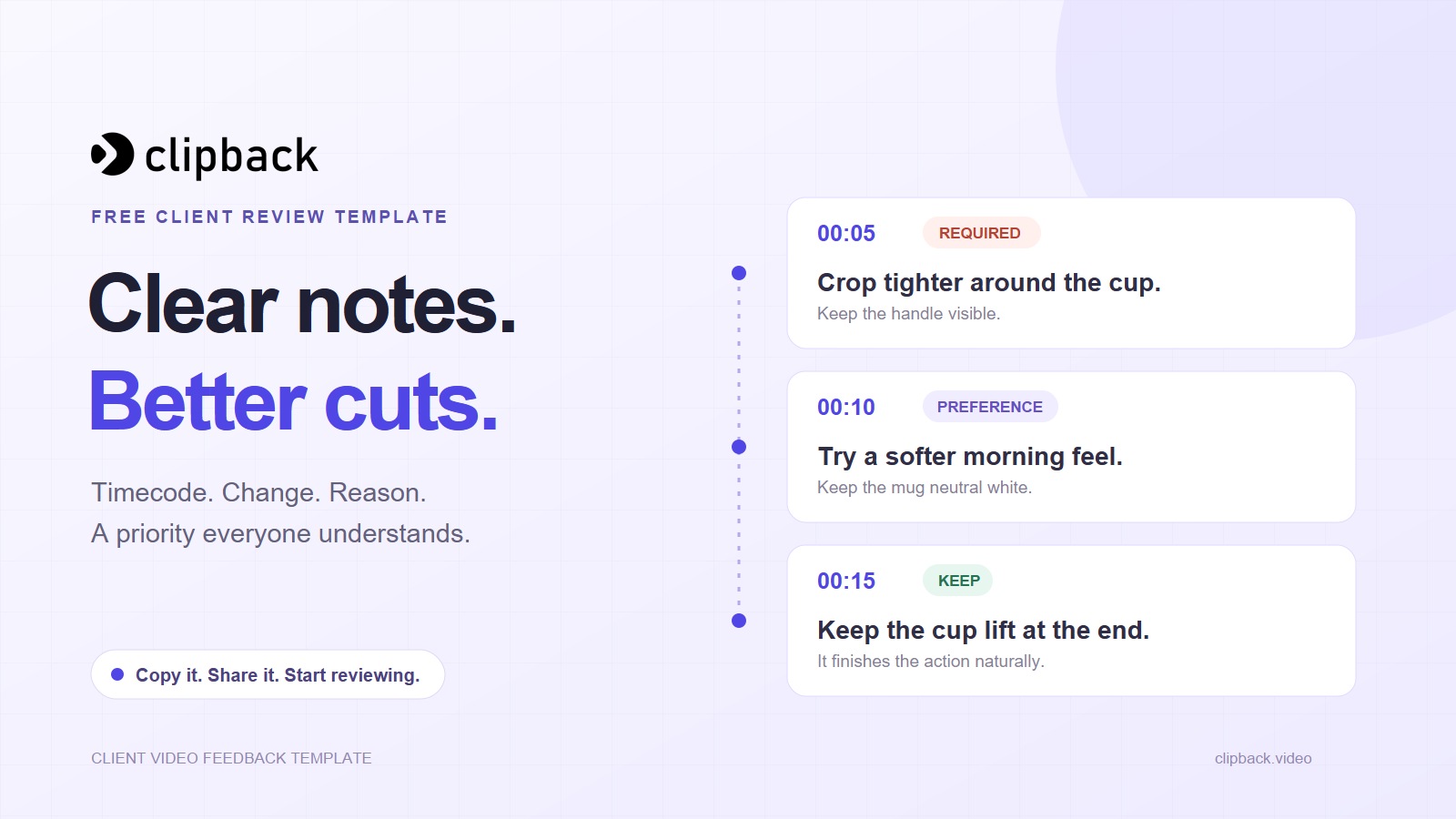
| Moment | Priority | Client note |
|---|---|---|
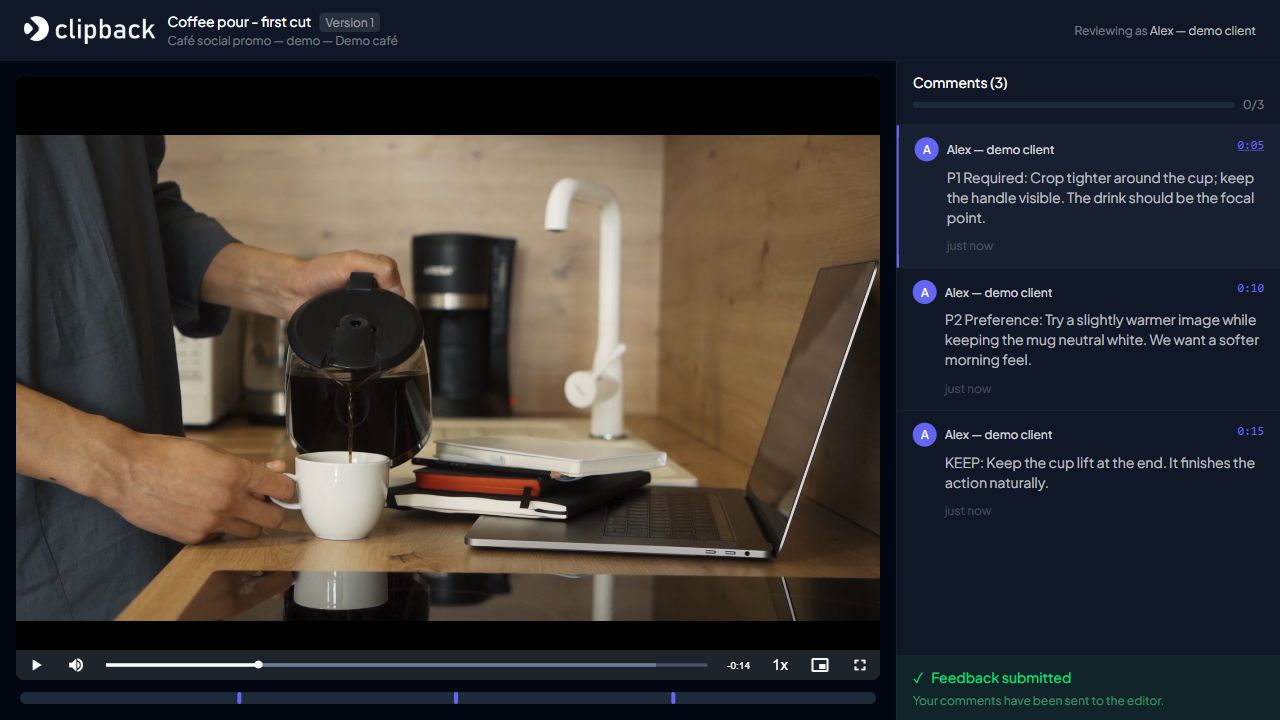
| 00:05 | P1 Required | Crop tighter around the cup; keep the handle visible. The drink should be the focal point. |
| 00:10 | P2 Preference | Try a slightly warmer image while keeping the mug neutral white. We want a softer morning feel. |
| 00:15 | KEEP | Keep the cup lift at the end. It finishes the action naturally. |
Compare the first note with “make it more about the coffee.” The useful version tells the editor where to look, what to change, and what to protect. The reason also helps them judge whether their revision solves the problem.
The email to send with your review link
Give the client a short instruction they can follow immediately. Replace the brackets before sending.
Subject: [Project] — [version] ready for your review
Hi [name],
Here is [version] of [video]: [review link].
For this round, please focus on [story / pacing / factual accuracy / other agreed focus]. Watch the full video, then leave your notes by [date, time, time zone].
For each note, point to the moment, describe the change or problem, and mark it P1 Required, P2 Preference, or KEEP. A quick reason helps me understand the outcome you want.
Please collect any internal feedback before confirming your notes are complete. If two people want different things, have [final approver] choose a direction so I can work from one agreed set of instructions.
Let me know when this round is complete. If you are happy with the video as reviewed, please confirm approval of [version].
Thanks,
[your name]
When you use Clipback, add one practical line: “Pause at the moment you want to discuss, click Comment, and post your note. When you have finished the review, click Submit Feedback.” Clients can review through the link without creating an account.
Use the template in Clipback
The document version works when everyone follows it. If manually typed timecodes and separate notes keep creating confusion, put the notes beside the video instead.
- Upload the cut and share its review link. Include the version, deadline, review focus, and final approver in your accompanying message.
- Ask the client to comment at the relevant moment. They can write the priority, requested change, and reason in the comment. The app attaches the playback timestamp.
- Have them submit the complete set. In Clipback, posting a comment saves it as a draft; Submit Feedback sends their notes to the editor. Tell each stakeholder how and when to finish.
- Read the notes before building the revision list. Clarify questions, resolve conflicting instructions, and separate KEEP notes from work that needs doing.
- Generate the revision checklist and track the agreed changes. Review the generated list: a positive comment or a question should not be mistaken for an edit. Return the next version with a short explanation of what changed.
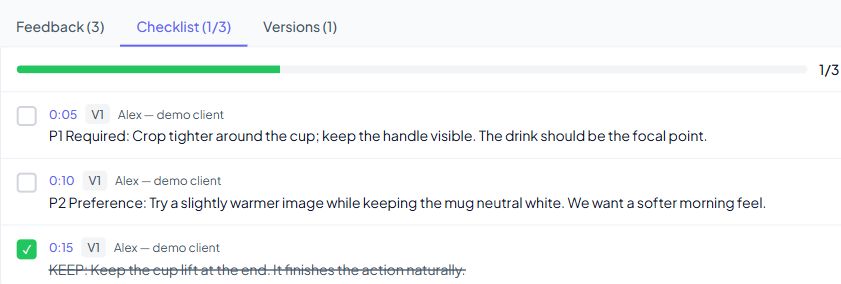
The template’s priorities, deadline, and approval owner are instructions you agree with the client. They are not additional form fields or automatic priority detection in Clipback.
Before you start the next revision
- Confirm the version. Notes on an older cut may no longer refer to the same moment.
- Resolve contradictions. Ask the final approver to choose when stakeholders give opposing instructions.
- Check missing assets. A request to replace a logo is not ready to action until you have the correct file.
- Confirm the review is complete. One person submitting their notes does not mean every stakeholder has finished.
A complete round of feedback and final approval are different decisions. “My notes are finished” means the editor can work. “Approved as reviewed” means the named approver accepts that specific version.
Common questions
Can I use this without a video review tool?
Yes. Copy the template into a shared document or email. Link the exact video version, use one shared list, and ask reviewers to check their typed timecodes before submitting.
What if the client cannot suggest a fix?
Ask them to identify the moment, describe what is not working, and explain what they want the audience to understand or feel. An editor can propose a solution from that information.
Should every note become a checklist item?
Review each note first. Required changes belong in the work list. Preferences may need a decision, questions may need an answer, and KEEP notes tell you what to preserve. A generated list still needs editorial judgment.
How many revision rounds should I allow?
Use the number and scope agreed for the project. This template helps make each round clearer; it does not change your agreement or guarantee a particular number of rounds.
Try it on your next client review
Download the free feedback template and send it with your next cut. If you want the notes attached to the video, create a free Clipback account, upload a video, and share the review link. The free plan lets you try the workflow on one project.
For more on the process around the template, read how to reduce unnecessary video revision rounds or how to organize feedback that has already arrived across different channels.
Illustrations: newly captured screenshots of Clipback using a fictional demo project. Video: Person Pouring Coffee into a Cup by Mikhail Nilov, used under the Pexels License. The example is not a customer testimonial or an endorsement by the footage creator.